Set up a password
Password-based login is an optional feature for your marCloudBackup Panel account.
It allows you to log in to the Panel without using Discord OAuth, which is useful if your Discord account gets compromised or disabled, and you want to retain access to your backups.
Create a password
To enable email-password login for your marCloudBackup Panel account, first you need to be logged in. See Sign in to the panel for instructions on how to do that.
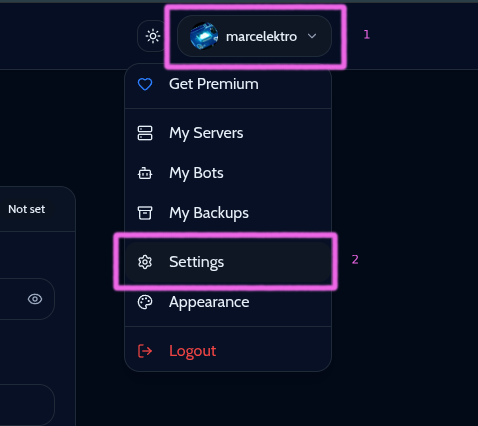
Then, navigate to the Settings page by clicking on your avatar in the top-right corner of the dashboard, and selecting Settings from the dropdown menu.
Then, have a look at the Setup Password section, which will show you the current status of your password setup.
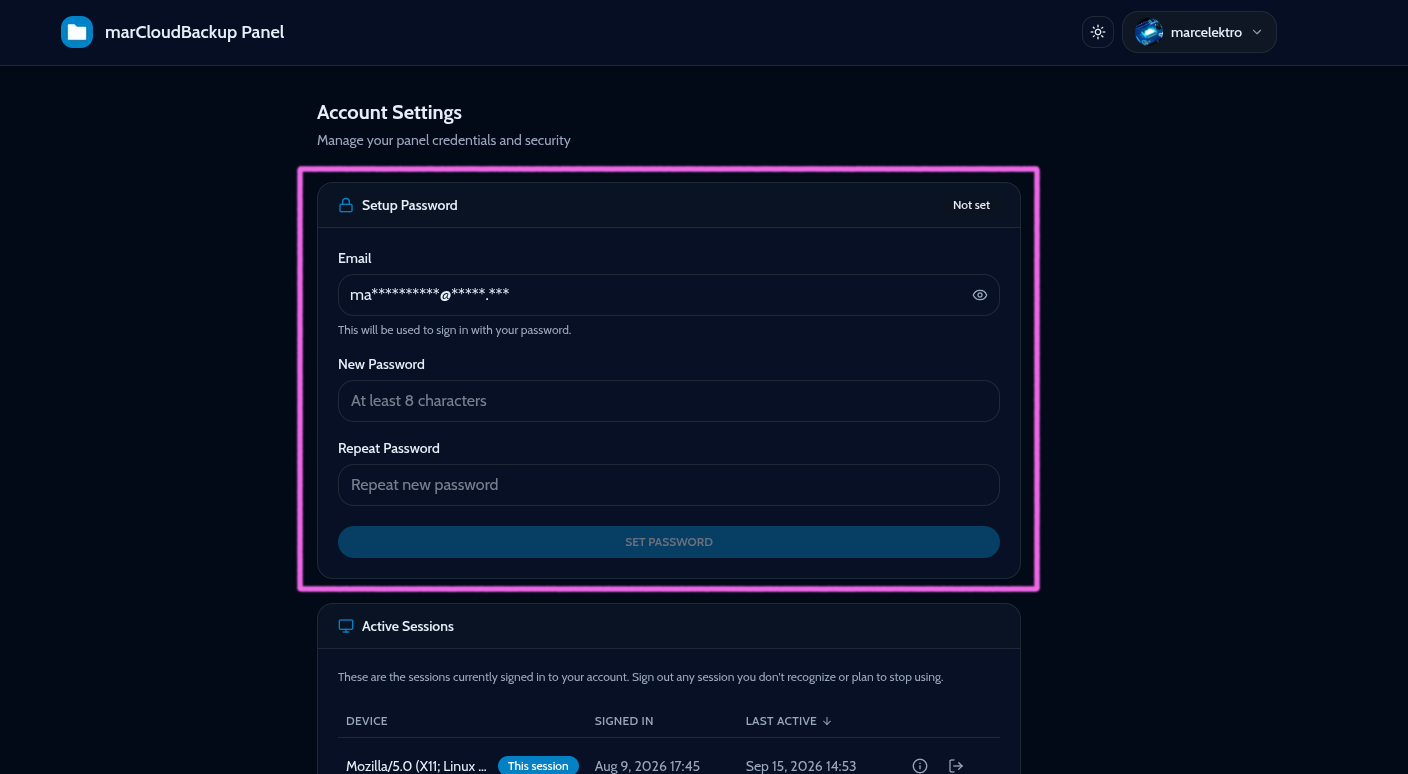
Then, set your password and confirm it by typing it again in the second field.
Your password will then be created and associated with your account, and you will be able to log in to the Panel using your email address and password instead of Discord OAuth.
Sign in with your password
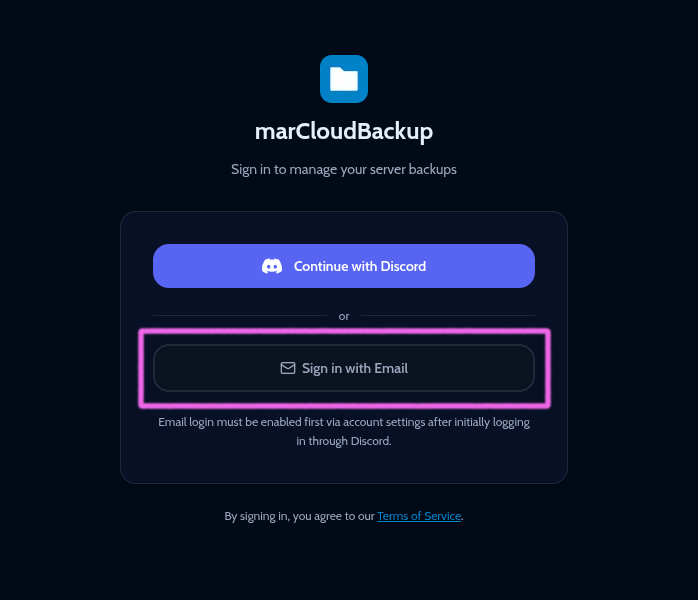
To sign in with your password, click the "Sign in with Email" button on the login page.
Then, enter your email address and password in the form, and click the "Sign in" button.
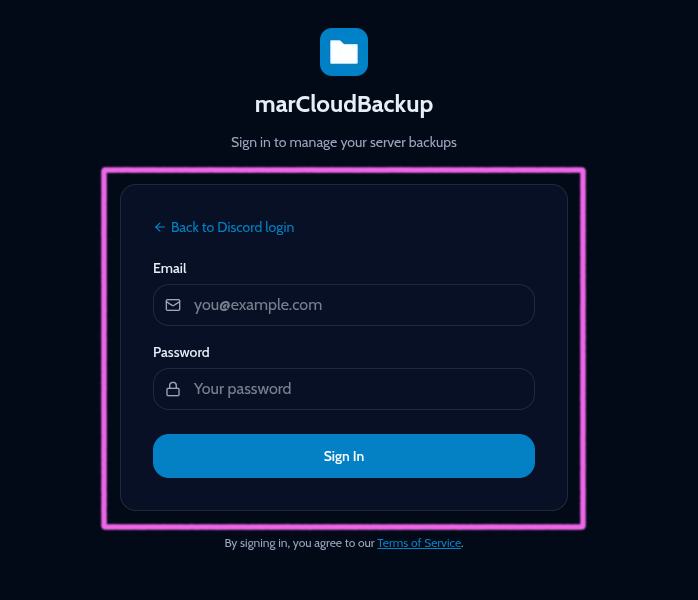
You will be redirected to the dashboard if your credentials are correct.
Discord OAuth is still required
Your account still needs to be linked to your Discord account, as we need that to identify you and your servers.
If your Discord OAuth login expires or you de-authorize the bot, the panel will not be able to retrieve your server list, and thus will show an error message. In that case, you will need to re-authorize the bot to regain access to your servers.
Reauthorize the bot
To reauthorize the bot, sign in to the Panel with your Discord account. The session will be refreshed automatically, and no further action is needed on your part.
What if my Discord account is inaccessible?
If your Discord account is compromised or disabled, you will still be able to log in to the Panel with your email and password, and access your backups and data.
However, you will not be able to view your server list, and thus will not be able to create new backups or restore existing ones, until your Discord account is restored, and you can reauthorize the bot.
Need help?
Contact us on our Support Server if you have any questions or issues regarding your account or password setup.
We'll love to help you! ^^